How to Activate Apple CarPlay on Mercedes-Benz Using DTS Monaco (Case Study)
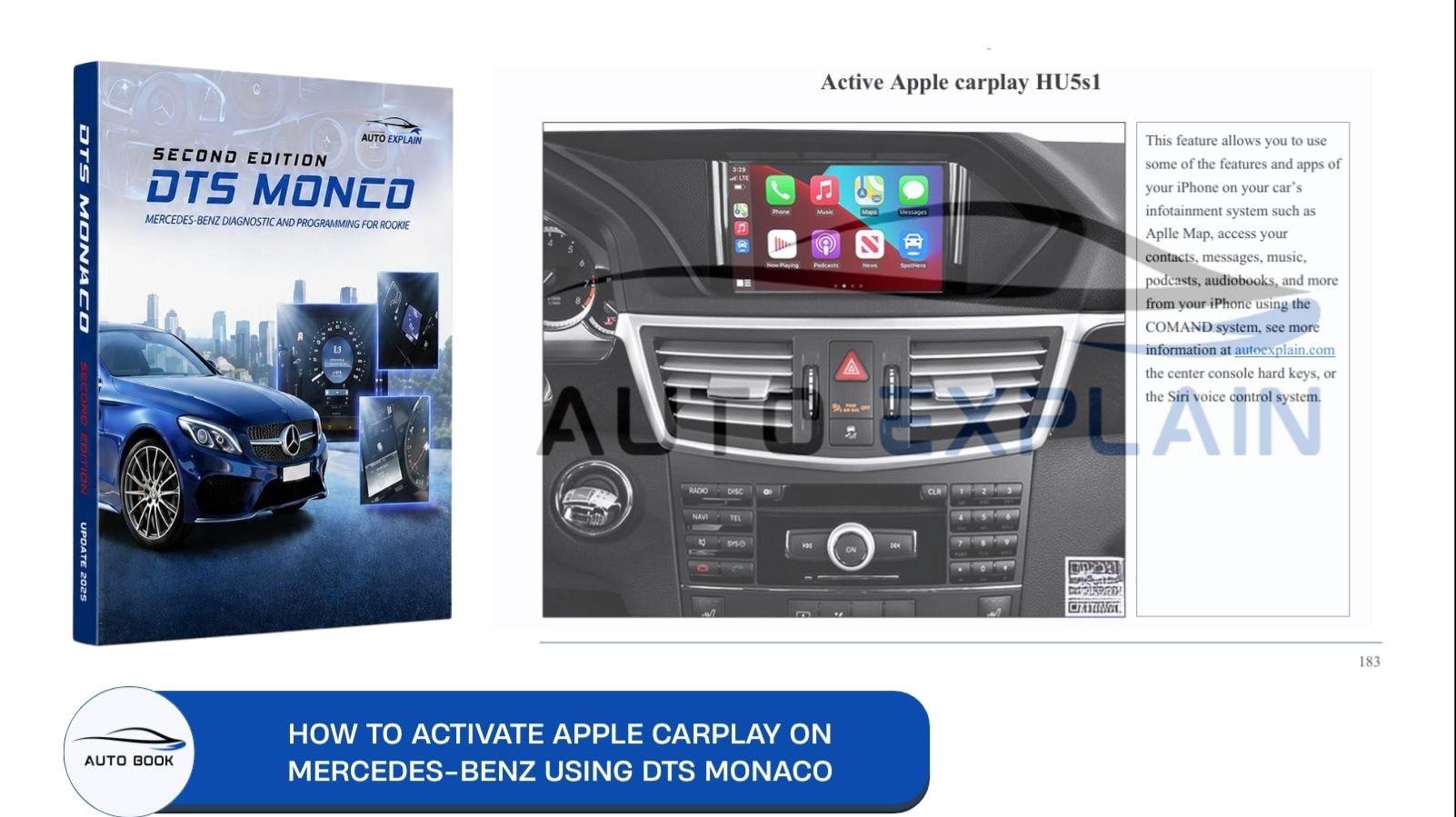
Your Mercedes-Benz has the screen, the USB port, even "CarPlay" sitting somewhere in the settings menu — so why won't it actually connect? Turns out the menu option showing up doesn't mean CarPlay is really active underneath. In this guide, we walk through a real case study on how to unlock Apple CarPlay using DTS Monaco — the exact variant coding steps used to actively enable it at the ECU level, not just toggle a setting.
What Does "Active Apple CarPlay" Actually Mean in DTS Monaco?
When a Mercedes-Benz has the hardware for Apple CarPlay but the feature isn't working, the fix usually isn't a setting you toggle inside the car — it's a coding change made at the ECU level through DTS Monaco.
Menu activation alone often isn't enough. Even when a CarPlay-related option appears in the head unit's menu, it may not function correctly unless the underlying variant coding parameters are set to match it. The menu is just the interface — what actually determines whether CarPlay works is how specific parameters are coded inside the head unit ECU.
This is why "active Apple CarPlay" in DTS Monaco refers to a variant coding process, not a simple settings change: you're going into the relevant ECU, selecting the correct coding domain, and changing specific parameters so the head unit's software actually recognizes and enables the feature — rather than just displaying an option that doesn't do anything.
In the case study that follows, we'll walk through exactly how this looks in practice — using the HU5S1 head unit ECU as the real example.
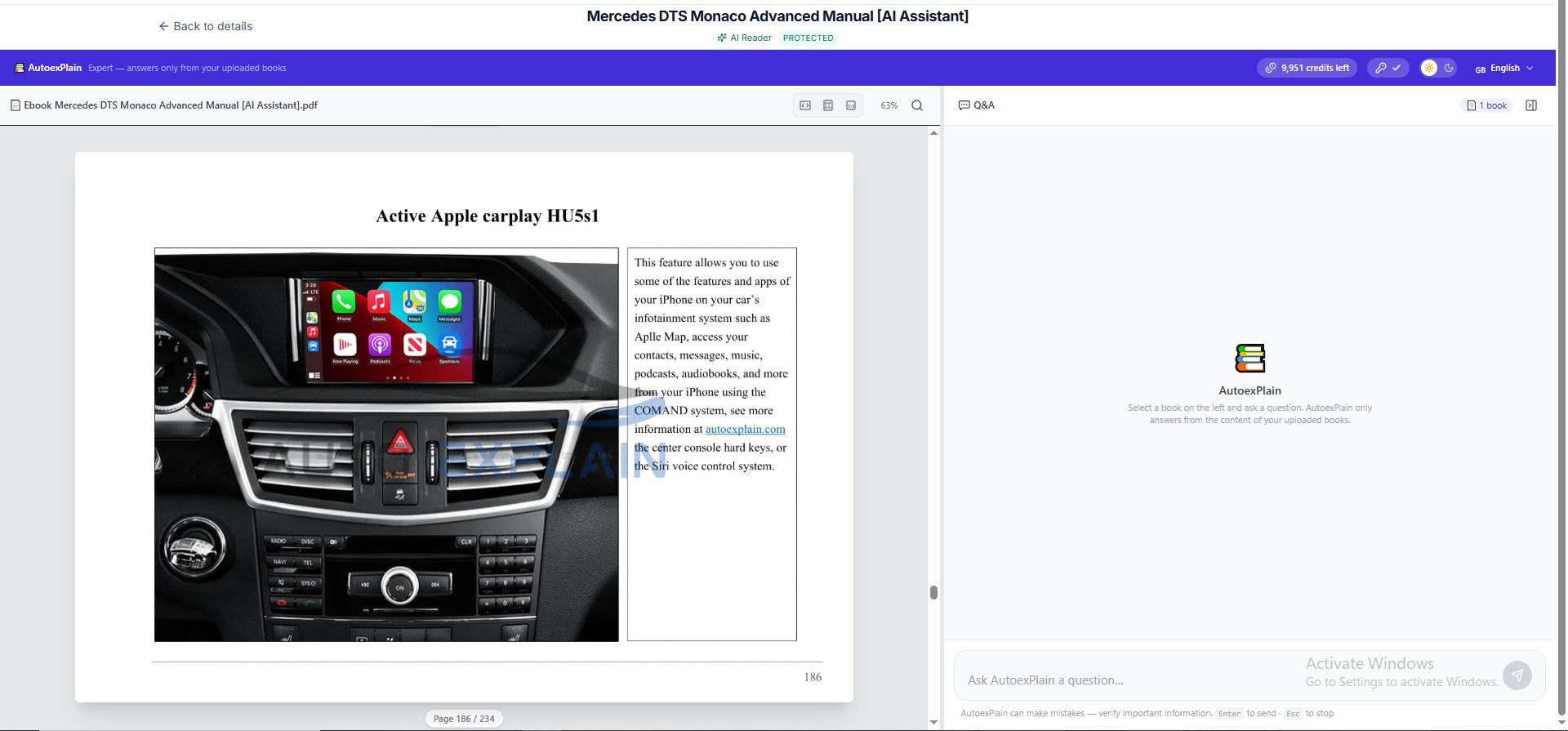
ECU and Coding Requirements to Unlock Apple CarPlay
Before making any coding change to activate Apple CarPlay, it's worth understanding exactly what you're working with — and what to prepare beforehand.
The ECU in This Case Study
The case study covered in this guide works with the HU5S1 head unit ECU, connected via HSCAN_UDS_500. This is the control unit responsible for the head unit's software behavior, including which infotainment features are actively enabled versus just visible but inactive.
Before You Start Coding
- A stable connection to the ECU. DTS Monaco needs to establish and maintain a reliable connection to HU5S1 before any variant coding can be read or written.
- Read and back up the current coding first. Before changing any parameter, it's essential to read the existing coding from the ECU and save it. This gives you a way to reference — or restore — the original configuration if something doesn't go as expected.
- Confirm the coding matches your specific vehicle. As you'll see in the case study, some parameters are chassis-specific (for example, values tied to a particular model designation). Applying the wrong variant for your vehicle is a common source of coding errors.
With the connection stable and the current coding backed up, the next step is entering Variant Coding and locating the correct domain — which is where the actual case study begins.
Step-by-Step: Unlock Apple CarPlay via DTS Monaco Variant Coding
This is the first part of the case study — activating Apple CarPlay through the Handsfree-Parameter CarPlay domain in DTS Monaco's Variant Coding module.
Step 1 — Choose Variant Coding
Open the Variant Coding tab in DTS Monaco to begin the coding session.
Step 2 — Choose the ECU: HU5S1
Select the HU5S1 head unit ECU (HSCAN_UDS_500) and establish the connection.
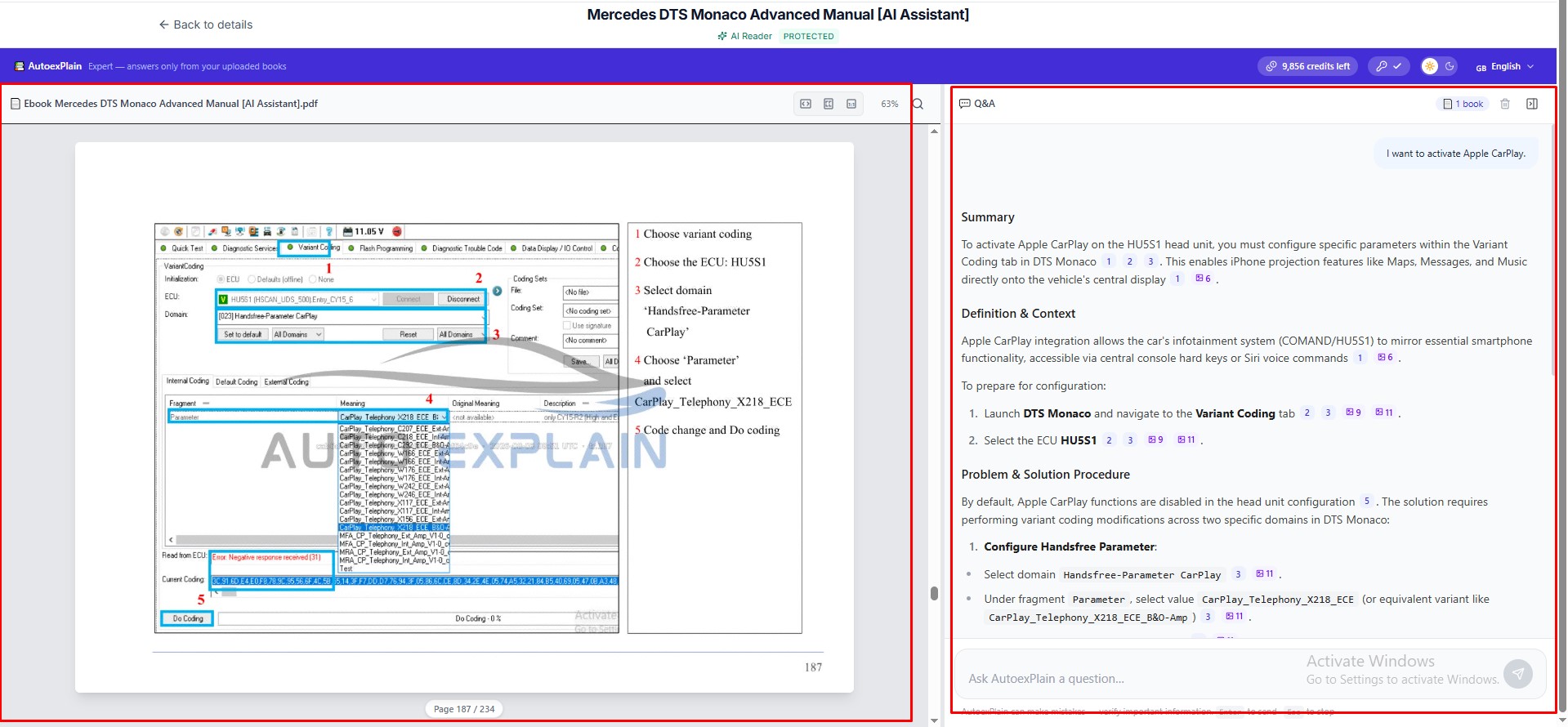
Step-by-Step unlock Apple CarPlay and Q&A AI Assistant
Step 3 — Select the domain
Navigate to the "Handsfree-Parameter CarPlay" domain — this is where the CarPlay-related parameters for this ECU live.
Step 4 — Choose "Parameter" and select the correct value
Under the Parameter field, select the value that matches your vehicle's chassis — in this case study, CarPlay_Telephony_X218_ECE. This step matters: the available list includes multiple chassis-specific options (different chassis codes, different regional variants), and selecting the wrong one for your vehicle is a common mistake at this stage.
Step 5 — Code change and Do Coding
Once the correct parameter is selected, apply the code change and run Do Coding to write it to the ECU.
This domain handles the handsfree/telephony side of CarPlay activation. As the next section shows, there's a second domain that needs to be coded separately to fully activate CarPlay via USB.
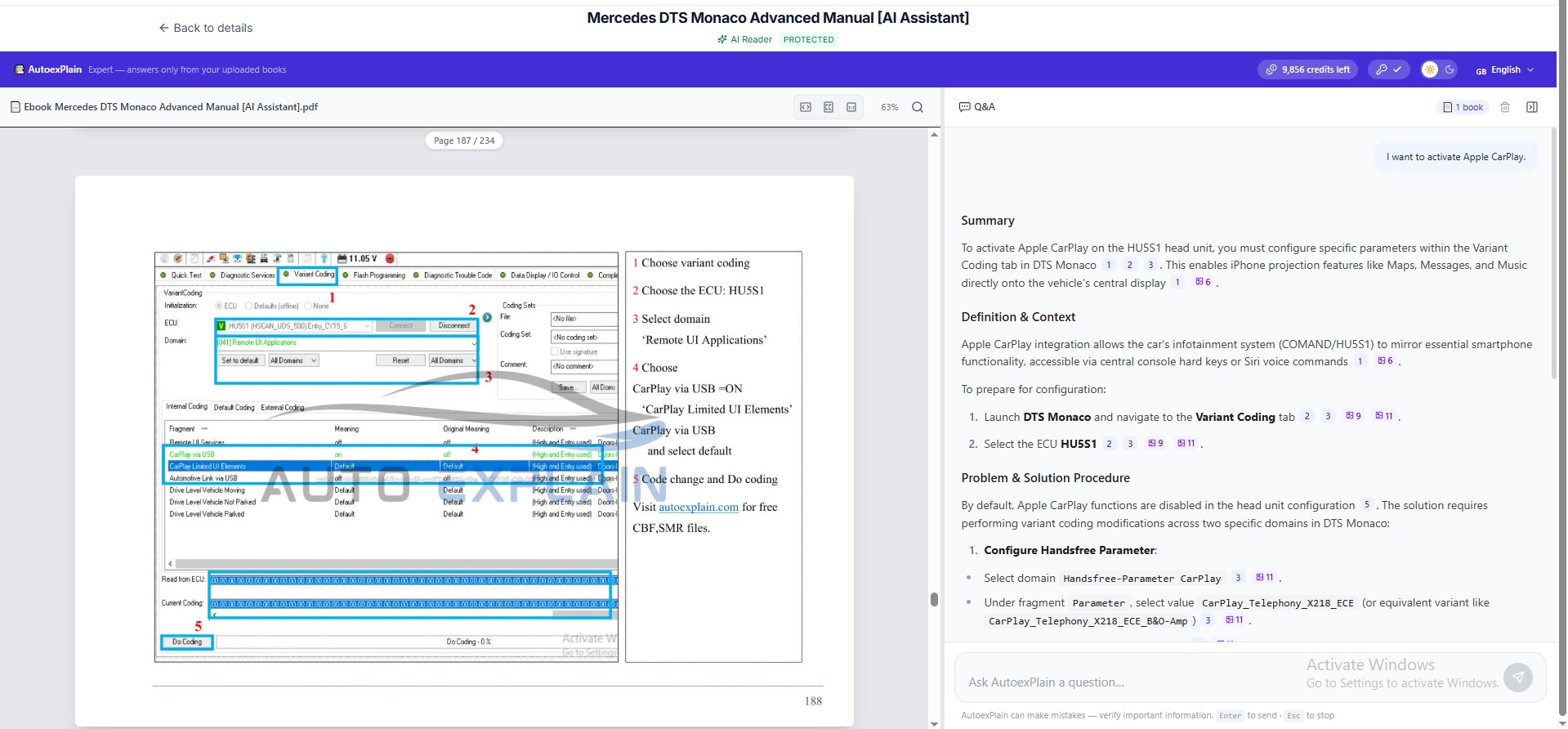
Step-by-Step: Activate CarPlay via USB (Remote UI Applications)
What Can Go Wrong When Coding Apple CarPlay?
Variant coding through DTS Monaco is powerful, but it comes with no built-in safety net — a point worth repeating before applying any coding change like the one above.
- No warning before or after coding. Unlike guided diagnostic tools, DTS Monaco doesn't flag whether a coding change is correct or risky before you commit it. Once you run Do Coding, the change is written — there's no confirmation step checking your work against the vehicle's actual configuration.
- Selecting the wrong chassis-specific parameter. As shown in the case study, the parameter list includes multiple chassis and regional variants (different chassis codes, different market versions). Choosing a value that doesn't match your specific vehicle is one of the most common mistakes at this step — and can result in the coding simply not working, or in unintended behavior elsewhere in the head unit.
- Coding without a backup. If the current coding wasn't read and saved before making changes, there's no straightforward way to revert if something goes wrong after Do Coding is applied.
- Assuming the ECU is correctly connected. A stable, correctly established connection to the ECU is required before any coding is written. An unstable or incomplete connection during the coding process can lead to incomplete or corrupted writes.
None of this means the process is unsafe when done correctly — the case study above shows a clear, working example. But it does mean this isn't a task to attempt without understanding what each step actually does, which is exactly why backing up coding data and confirming the correct parameter for your specific vehicle matter as much as the coding steps themselves.
FAQ
1. Does Apple CarPlay require a subscription on Mercedes-Benz?
No, Apple CarPlay itself does not require a monthly subscription from Mercedes-Benz. Depending on your mobile carrier, data or message rates may still apply when using navigation, streaming, or other online apps through CarPlay.
2. Why does CarPlay show up in my Mercedes menu but not actually work?
This usually means the head unit's variant coding hasn't been set to actively enable the feature. The menu option can appear even when the underlying ECU parameters aren't coded to match — which is exactly the gap this case study addresses.
3. Does this case study apply to every Mercedes-Benz model?
No. The case study is specific to the HU5S1 head unit ECU, and the coding parameter used (CarPlay_Telephony_X218_ECE) is chassis-specific. Other models and ECUs will have different parameter options, and applying the wrong one for your vehicle is a common source of coding errors.
4. Can a beginner follow this case study directly?
This process assumes you're already comfortable with DTS Monaco's basic setup, ECU connection, and reading/backing up coding data. If you're not there yet, it's worth building that foundation first — see our DTS Monaco Beginner vs Advanced guide to figure out where you stand.
5. What iPhones are compatible with Apple CarPlay?
Apple CarPlay works with iPhone 6 and newer models running iOS 13.0 or higher. Older iPhone models may not support all CarPlay functions.
Unlocking Apple CarPlay through DTS Monaco is a clear example of what variant coding actually involves — not flipping a switch, but making a precise, chassis-matched change at the ECU level, with real consequences if the wrong parameter is applied. This is just one of over 100 hidden Mercedes-Benz features covered with the same level of step-by-step detail in the Mercedes DTS Monaco Advanced Manual — including comfort, lighting, performance, and infotainment coding cases like this one.